Sunday, 3 April 2016

20 Interesting Facts About Computers

Computers have become a very important part of our daily life. This awesome machine changed our lives in so many ways. There are lots of interesting interesting facts about computer that I thought you would be interested in.
Some of these computer facts might just blow your mind! so be prepared for that blast.
1. The first electronic computer ENIAC weighed more than 27 tons and took up 1800 square feet.
2.  Only about 10% of the world’s currency is physical money, the rest only exists on computers.
3. TYPEWRITER is the longest word that you can write using the letters only on one row of the keyboard of your computer.
4. Doug Engelbart invented the first computer mouse in around 1964 which was made of wood.
5. There are more than 5000 new computer viruses are released every month.
6. Around 50% of all Wikipedia vandalism is caught by a single computer program with more than 90% accuracy.
7. If there was a computer as powerful as the human brain, it would be able to do 38 thousand trillion operations per second and hold more than 3580 terabytes of memory.
8. The password for the computer controls of nuclear tipped missiles of the U.S was 00000000 for eight years.
9. Approximately 70% of virus writers are said to work under contract for organized crime syndicates.
10. HP, Microsoft and Apple have one very interesting thing in common – they were all started in a garage.
11. An average person normally blinks 20 times a minute, but when using a computer he/she blinks only 7 times a minute.
12. The house where Bill Gates lives, was designed using a Macintosh computer.
13. The first ever hard disk drive was made in 1979, and could hold only 5MB of data.
14. The first 1GB hard disk drive was announced in 1980 which weighed about 550 pounds, and had a price tag of $40,000.
15. More than 80% of the emails sent daily are spams.
16. A group of 12 engineers designed IBM PC and they were called as “The Dirty Dozen”.
17. The original name of windows was Interface Manager.
18. The first microprocessor created by Intel was the 4004. It was designed for a calculator, and in that time nobody imagined where it would lead.
19. IBM 5120 from 1980 was the heaviest desktop computer ever made. It weighed about 105 pounds, not including the 130 pounds external floppy drive.
20. Genesis Device demonstration video in Star Trek II: The Wrath of Khan was the the first entirely computer generated movie sequence in the history of cinema. That studio later become Pixar.
I hope you enjoyed those computer facts as much as I did. Share them with your friends so that they can enjoy them too

Friday, 1 April 2016

Top 10 Facebook tips

Below is a listing of our top 10 tips for the popular social networking website Facebook.

  • Hide users, games, polls, etc.

It quickly gets annoying seeing some users posts, game invites, polls, etc. Hovering your mouse to the right of the post and clicking the Hide button as shown below can hide any post. After pressing the button you'll have the option to hide that user or in the case of a Facebook application the option to hide that application from ever showing up on your profile.
Hide Facebook users, games, polls, etc.
To unhide someone or unblock an application click the Edit Options link in the bottom right corner of the news feed as shown below.
Facebook unhide friends
Greasemonkey and FB Purity
Although Facebook does not give you the option to hide friends, friend requests, or various notifications, these can be hidden using browser add-ons. If you're running Mozilla Firefox, Chrome, Opera, or Safari we suggest installing the Facebook Purity add-on.

  • Update your privacy settings

Click Account in the top right corner of the Facebook window and then click Privacy settings to adjust who is capable of seeing what on your Facebook profile. We highly recommend going through all the privacy settings to verify your privacy is properly protected.
Anything that is not set to friends only or friends of friends can be seen by anyone searching on the Internet. Below is a few things we recommend for most users.
  1. Under Search in Privacy settings uncheck Public Search Results. Adjusting the settings prevents users from finding your account and profile picture in search results such as Google
  2. Under Application settings, make sure you're only allowing applications you want to have access to your information. Applications that you grant rights to can have access to your Facebook profile information.
  • If you're curious to see how a program or web page connect to the Facebook API can see your profile see Tip135.
  •   Use the Facebook top bar for navigation
Facebook navigation
Knowing how to properly navigate is vital if you want to get the most out of Facebook. Below is a brief description of each of the available options in the top bar as shown above.
Home (facebook logo) - Clicking this logo takes you to your wall (News Feed) that shows all friends recent posts.
Friend requests - If any friend requests are waiting to be approved this icon shows a notification of how many friends are waiting for approval. This icon can also be clicked when you want to view any friend recommendations or search for friends on Facebook.
Messages - This section allows you to send and receive private messages between one or more of your friends.
Notifications - Any time a friend or Facebook application creates a new post you'll be notified in this section. Clicking this icon shows all recent notifications. To change notifications including any Facebook applications or games click the See All Notifications link at the bottom and check or uncheck what you want to be notified on.
Search - Finally, the search box in Facebook can be a powerful tool that can be used to quickly find any current friends or people on Facebook. Also, searching for terms such as a company name, product, sports team, music band, etc. will find fan pages and groups that can be joined.

  • Modify your account notifications

Keep your e-mail and your cell phone clean by updating or eliminate Facebook notifications or keep more up-to-date by adding new notifications. Facebook notifications can be added and removed by clicking Account link in the top right corner, thenAccount Settings, and then clicking the Notifications tab.

  • Top News and Most Recent

Facebook News and most Recent
By default Facebook displays your wall postings in the News format, which means it only displays posts it believes are most relevant to you. These results are based on your past interaction with your friends. If you want to see every post made by all your friends that are not hidden click the Most recent link in the upper right section of your news feed as shown in the above picture example.
If you want to adjust who shows up manually click the Edit Options in the bottom right corner of your news feed.
Facebook unhide friends

  • View High School work friends

If you've added your High School or previous Work locations to your profile, quickly see all classmates and co-workers on Facebook by clicking the link in your Info tab under your profile.

  • Quickly change profile picture

Your profile picture can be changed by visiting your profile, hovering the mouse over your current profile picture, and clicking the Change Picture link in the top right corner.

  • Don't post private information on friend's walls on in comments

When you make a post on a friend's wall or in any of their comments realize that any of their friends are going to be able to see that post. If you want for something to remain only between you and a friend send them a Facebook message instead.

  • Suggestions and random friend invites

As you get more friends on Facebook it will begin making friend, groups, and fan suggestions. These are suggestions made by Facebook and not your friends. Unless these are something you're interested in they can be ignored.
This same rule can be applied to people who may want to be your friend that you don't know. If you don't know someone don't accept his or her friend invite. Once someone becomes your friend they'll have access to any information your friends are capable of seeing.

  • Tag your Facebook friends in your photos

Always make sure to tag any of your Facebook friends that are in pictures you upload. However, never tag someone who is not in the picture. When someone is tagged in a photo that picture is automatically added to that persons profile and is a great way to share pictures with all friends.

Top 10 keyboard shortcuts everyone should know

Using keyboard shortcuts can greatly increase your productivity, reduce repetitive strain, and help keep you focused. For example, to copy text, you can highlight text and press the Ctrl + C shortcut. The shortcut is faster than moving your hands from the keyboard, highlighting with the mouse, choosing copy from the file menu, and then returning to the keyboard.

Below are the top 10 keyboard shortcuts we recommend everyone memorize and use.

  • Ctrl + C or Ctrl + Insert and Ctrl + X

Both Ctrl + C and Ctrl + Insert will copy the highlighted text or selected item. If you want to cut instead of copy press Ctrl + X.

  • Ctrl + V or Shift + Insert

Both the Ctrl + V and Shift + Insert will paste the text or object that's in the clipboard.
Use the above text input fields to highlight the "Cut or copy this text" text and press either Ctrl + C to copy or Ctrl + X to Cut the text. Once Cut Move to the next field and press Ctrl + V or Shift + Insert to paste the text.

  • Ctrl + Z and Ctrl + Y

Pressing Ctrl + Z will Undo any change. For example, if you cut text, pressing this will undo it. These shortcuts can also be pressed multiple times to undo or redo multiple changes. Pressing Ctrl + Y would redo the undo.
Use the above text input field to highlight some or all of the text and then press Ctrl + X to cut the text. Once the text has disappeared press the Ctrl + Z to undo the cut.
Tip: If you did the first example as well (cut and paste text) if you continue to press Ctrl + Z it is also going to undo that change.

  • Ctrl + F

Pressing Ctrl + F opens the Find in any program. Ctrl + F includes your Internet browserto find text on the current page. Press Ctrl + F now to open the Find in your browser and search for "shortcut" to find each time shortcut is mentioned on this page.

  • Alt + Tab or Ctrl + Tab

Pressing Alt + Tab switches between open programs moving forward. For example, if you have your browser window open and other programs running in the background press and hold Alt and then press tab to cycle through each open program.
Tip: Press Ctrl + Tab to switch between tabs in a program. For example, if you have multiple tabs open in your browser now press Ctrl + Tab to switch between open tabs.
Tip: Adding the Shift key to Alt + Tab or Ctrl + Tab moves backward. For example, if you are pressing Alt + Tab and pass the program you want to use, press Alt + Shift + Tab to move back to that program.
Tip: Windows Vista and 7 users can also press the Windows Key + Tab to switch through open programs in a full screenshot of the window.

  • Ctrl + Back space and Ctrl + Left or Right arrow

Pressing Ctrl + Backspace will delete a full word at a time instead of a single character.
Holding down the Ctrl key while pressing the left or right arrow will move the cursor one word at a time instead of one character at a time. If you want to highlight one word at a time, hold down Ctrl + Shift and then press the left or right arrow key to move one word at a time in that direction while highlighting each word.

  • Ctrl + S

While working on a document or other file in almost every program, pressing Ctrl + Ssaves that file. Use this shortcut key frequently if you're working on anything important in case an error happens, you lose power, or other problem that causes you to lose any work since the last save.

  • Ctrl + Home or Ctrl + End

Ctrl + Home will move the cursor to the beginning of the document, and Ctrl + End will move the cursor to the end of a document. These shortcuts work with most documents, as well as web pages.

  • Ctrl + P

Open a print preview of the current page or document being viewed. For example, pressCtrl + P now to view a print preview of this page.

  • Page Up, Spacebar, and Page Down

Pressing either the page up or page down key will move that page one page at a time in that direction. When browsing the Internet, pressing the spacebar also moves the page down one page at a time.
Tip: If you are using the spacebar to go down one page at a time, press the Shift key and spacebar to go up one page at a time.

Friday, 19 June 2015

15 Best Whatsapp Tricks And Tips 2015

We have listed here Best Whatsapp Tricks And Tips 2015. You can check all these Unknown Whatsapp Tricks And Tips and make fun with your friends and amaze them by these Special Whatsapp Tricks. We all know Whatsapp is the one of the Top Messenger, we can share photos, videos and audios with our friends and family and make free calls over internet. But on the other side there are many Whatsapp Hidden Secrets And Tricks so we have found and listed best Whatsapp Tricks 2015. There are also many other features which are not known by new persons who don't know much about Whatsapp so we listed Whatsapp Tips also.  


Best Whatsapp Tricks And Tips 2015 

#1. How To Use Whatsapp Without Number 


Here I have listed the best method through which you can use Whatsapp without any number. Simply follow the given steps and you will be able to become use Whatsapp without number.  There are many Whats Tricks 2015 but this one is the best Whatsapp Trick. You can enjoy and amaze your friends by using Whatsapp without number.

trick-to-use-whatsapp-without-mobile-number
  • First you have to uninstall your Whatsapp and then reinstall it. 
  • When you reinstall Whatspp it will ask you for mobile Verification.
  • Now this step is very important- Block all outgoing messages by simple put your mobile at Flight Mode it will block all outgoing messages.
  • Before doing above steps install Spoof Text Message android app in your android phone. If you are using Iphone then you can install Fake A Message app.
  • Now when you put your mobile number for verification but it will not able to send verification to their server because we enable flight Mode and it stop all outgoing messages.
  • Now you have to choose alternative method for verification choose "Verification Through SMS". Put your email address in the box then click send button and instantly click on cancel button it will terminate authorization process.
  • Now open the Spoof Text Message and fill the below given details.
To: +447900347295
From: +(Country code)(mobile number)
Message: Your email address

  • After few seconds you will received a verification code on your Spoof Text Message app. Put this code to verify your account and you will easily use Whatsapp without any number. 


#2. Lock Whatsapp With Password 


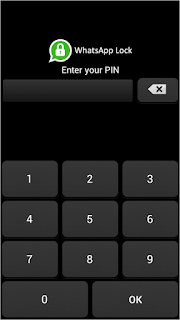
We all know security is the first priority for anyone else. And we do not want to share our personal information to anybody. We can lock apps with the default  locker but sometimes it is not so sufficient because if you put same lock on all apps and not able to put particular lock for particular app and anyone can easily open your accounts if you tell your mobile password to your friends but don't worry here we have solution to How You Can Lock Your Whatsapp Account With Password. 
lock-whatsapp-with-password
  • Download and install Whatsapp Lock application in your smartphone 
  • Open application and put your password.
  • Now your Whatsapp is totally secured with password and no one can open without your permission.  


#3. Send PDF, APK and Zip File Extension Via Whatsapp


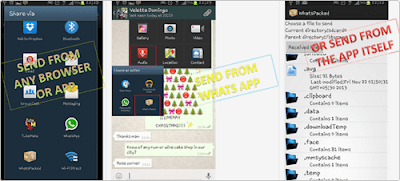
We all know Whatsapp does not allow to send or share zip, pdf, apk extension files via Whatsapp. we can only send photos, videos and audios on Whatsapp. But don't worry here we have found one method through which will be able to send PDF, APK, Zip, rar or any other big files to your friends.

trick-to-share-files-via-whatsapp
  •  Download and install "Whats Packed 2 ads" app in your android phone.
  • Now you can send any type of file through your Whatsapp 
  • This app let you send any type of file such as PDF, .APK, Zip etc. You can  also send it through your browser. 


#4. Run Multiple Whatsapp Accounts On Android 


As we know we cannot use two Whatsapp in one device. Here i will explain you How To Use Multiple Whatsapp Accounts on one Device. Just simply follow the givens steps. Here we use OG Whatsapp which is an alternate of Whatsapp. OG Whatsapp let you use Multiple Whatsapp accounts in your smartphone. 
multiple-whatsapp-accounts
  • First of all backup your all Whatsapp conversation and data from it.
  • Now open Settings>> Apps>> Manage apps>> Whatsapp>> and click on Clear Data.
  • Next open your Whatsapp folder and rename it to OG Whatsapp.
  • Now uninstall the original Whatsapp.
  • Download install OG Whatsapp in your mobile phone. You can search and download .APK file from Google.
  • After installing, it will ask your mobile number put your mobile number and verify it.
  • Now for 2nd number download and install official Whatsapp  from the Google Play Store and verify your other number.
  • After doing all steps now you can easily use 2 Whatsapp Account on same device.  


#5. Recover Deleted Messages and Chats From Whatsapp


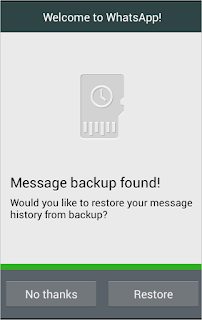
Sometimes we delete our whatsapp conversation by mistake or may be it deleted by some other cause. So if you are deleted your Whatsapp chat accidentally and want to back it again then don't worry here we have simple method through which you can recover your delete messages from your Whatsapp. If you don't know then first let me tell you that Whatsapp backup your all conversation everyday and it stored in the .db.crypt file. So you can recover upto 7 days older chat of your Whatsapp account. Simply follow the given steps.
recover-deleted-whatsapp-messages
  • Whenever you deleted your chat by mistake just uninstall your Whatsapp and reinstall it.
  • While reinstalling it, it will ask you to "Recover" option simply click on it. You will find your all chat again in your Whatsapp. 
OR
  • So here is another method to back your deleted chat.
  • Go to SD Card>> Whatsapp >> Database and you will find msgstore.db.crypt file this file contains your all messages which is sent or recieved on the same day. You will also see the another file msgstore-yyyy..dd..db.crypt this file conatain all messages which is sent or received by last seven days.
  • You can open these files with any simple text editor.
  • So you can now read all your Whatsapp messages. 

#6. Download Whatsapp For PC and Laptop


If you are have an PC/Laptop then you can easily use Whatsapp on your PC. In this method I will explain you How To Use Whatsapp On PC/Laptop. To download and use Whatsapp for here I used Bluestacks an android emulator which help you to play and use all android apps on PC/Laptop. 
download-whatsapp-for-pc-laptop
  • First of all download and install Bluestacks on your PC/Laptop.
  • Open it and search Whatsapp on search bar.
  • Install Whatsapp on It and verify your number. So by this method you can  Whatsapp on your PC/Laptop also.  

    #7. Create Shortcuts for Important Contacts


    If you want to talk only with some people or often you talk only with these people then you do not have to need to open your Whatsapp and search for your best friends, scroll up or down you can create Shortcut Contacts on your screen and directly chat with them from the Shortcuts. 
    • Simply Tap on the contacts of which you want to create shortcut.
    • Then it will show you small pop up then click on "Add Conversation Shortcut".  


    #8. Stop Auto Downloading Images and Videos In Whatsapp


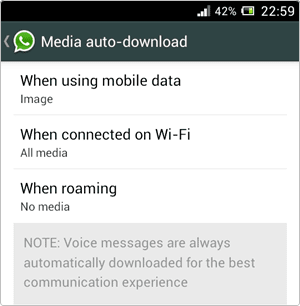
    There are lots of images and videos we send to our friends and family. And they also sent lots of images and videos back to us. Also in the groups persons  share lots of images and video clips and sometimes we don't know how to stop this headache. Don't worry whatsapp also have inbuilt feature through which you can stop Auto Downloading Images and Videos. 
    stop-auto-downloading-media-files
    • Go to your Whatsapp settings.
    • Click on Chat Settings.
    • Then click on Media Auto Download and change settings according to you.


    #9. Best Whatsapp Trick to Hide the Sent Image using Another Image


    You want to make fun of your friends then use this trick it will really help you to make fun of your friends. With this simple and best Whatsapp Trick you can hide your original image behind the another images so whenever some one click on the that image they will see only the hide image so how this you can confused them with this trick.
    whatsapp-trick-to-hide-one-image-behind-other-image
    • Download and install Magiapp app in your android phone.
    • Foe Iphone users they can install FhumbApp from apple store.
    • Now install the app in your phone. This app let you hide original image behind the other inage and you can send to your friends. 

      #10. Hide Your Whatsapp Profile Picture - Privacy Setting


      If you are new on Whatsapp and don't know How To Hide Whatsapp Profile Picture so no other user can see your profile picture mostly in the groups then you can make some simple settings in your Whatsapp privacy settings and Hide your profile picture so no one can see it. 

      hide-whatsapp-profile-picture
      • Go to Whatsapp Settings >> Account >> Privacy.
      • You will find there Profile Picture option click on it.
      • Now make it visible to only your contacts or either No Body so no one can see it. 


      #11. How to Stop Whatsapp Images to Appear in Photo Album


      All the photos and videos are visible in photo album or gallery in mobile phone. Whatsapp images and videos also appear in the photo album or Gallery. But if you do not want to show your Whatsapp images and videos on your photo album or Gallery then simply follow this method and you will be able to stop your Whatsapp images and videos showing in photo album or Gallery.  

      For Android Users


      • You must have an File Explorer or if you have then it's good.
      • Here I use ES File Explorer it is really good.
      • Now go to your Whatsapp folders and create a new file with name .nomedia file.
      • Now your Whatsapp Images and Videos won't show in Gallery or Photo Album.
      whatsapp-tricks-2015

        For IOS Users


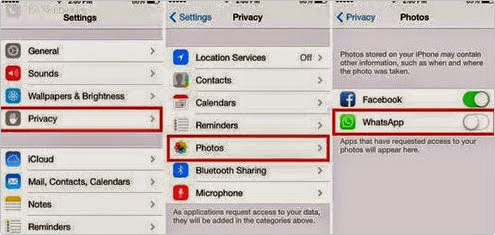
        • Go to settings option.
        • Click on Privacy settings.
        • Select the option Photos under it and uncheck the Whatsapp images option.
        • Now Whatsapp images won't be appear in Photo Album or Gallery on IOS devices.

        #12. Create Fake Conversations and Messages on Whatsapp 


        This is an amazing trick you can create Fake conversation and messages with celebrities and any other person so you can make your friends fool and amaze them. simply follow the given steps and you can enjoy this amazing trick to make fake conversation on Whatsapp. 
        fake-conversation-messages-whatsapp-tricks
        • Download and install Whatsaid app on your mobile phone.
        • With the help of this app you can make fake conversation and amaze your friends. 


        #13. Migrate Whatsapp Messages from One Phone to Other


        If you are buy a new phone or want to migrate your Whatsapp message to  your new phone then with this simple Whatsapp Trick you can very easily migrate your Whatsapp messages to another phone. 
        whatsapp-tricks-for-transfer-messages-one-device-to-another
        • Before install Whatsapp on your new phone.
        • First go to File Manger >> Whatsapp Folder.
        •  Then click on Database of in Whatsapp folder then copy all files to your PC.
        •  Now install Whatsapp on your new Phone and copy your all data from PC to new phone's Whatsapp folder. 

        #14. Hide Last Seen or Blue Tick On  Whatsapp  


        Whenever we send a message to our friends and family and when they read our message it will show us blue ticks that means the other person read our message. If the ticks are grey it means the other person receive our message but don't see. So if you do not want to show your presence on Whatsapp and want to Hide last seen option then here we have solution. Simply follow the given steps. 
        hide-last-seen-whatsapp-tricks
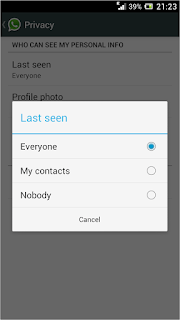
        • Go to settings >> Account >> Privacy Settings.
        • Select the option "Last Seen".
        • Click on "No Body" so this is how you can hide last seen on Whatsapp and no one can find when you use your Whatsapp last time.
        OR
        • Go to Settings >> Account >> Privacy.
        • Uncheck the option Read Receipts so this will hide blueticks when you see any message the user cannot see blueticks from you.  

        #15. Use Whatsapp On Web 


        whatsapp-on-web
        You can also use whatsapp on Chrome Browser. Simple go to your Whatsapp >> click on settings and you will see the option Whatsapp On Web click on it . Now open your Chrome Browser go to web.whatsapp.com. Scan the code with your mobile phone and it will sync all your Whatsapp contacts on your browser so you can enjoy Whatsapp on your browser while using Facebook or doing other work and you do not have to check your phone to read Whatsapp messages.

        Note: Don't close Whatsapp while using on Web. It will disconnect network between web and Whatsapp.